
The Unpack tab in Career Profile is where you surface the actual evidence behind your career — the specific projects, decisions, and outcomes that your resume probably undersells or leaves out entirely. It works as a conversation: the AI asks you questions about your experience, you answer in plain language, and it listens for things worth capturing.
It is not a form. You are not expected to enter structured data. The point is to talk through your work the way you would explain it to a person, and let the AI do the extraction work.
Each session is a focused conversation, typically 20 to 40 minutes. You can have as many sessions as you want — each one builds on your existing Career Brain, so the AI already knows what it has and targets the gaps.
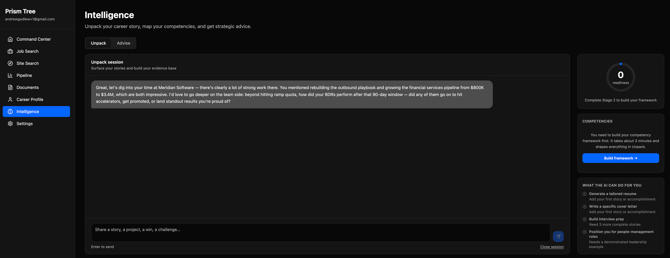
As the conversation progresses, the AI will surface pieces of information it thinks are worth saving. These appear in the chat as chips — small cards attached to the AI's message that each represent a discrete record it wants to add to your Career Brain. A chip might be an accomplishment ("Reduced support ticket volume by 35% by rebuilding the onboarding flow"), a STAR story about a specific project, a skill the AI inferred from something you mentioned, or, occasionally, a proposed new competency it thinks your experience might represent.
Each chip has a Save button. Clicking Save writes that record to your Career Brain. Not clicking it means the record is not saved, even if the conversation continues past that point.
A few things worth knowing about how chips work in practice:
-
You do not have to save everything. If the AI surfaced an accomplishment but got the details slightly wrong, skip it and correct the AI in the next message. It will try again. If a chip captures something real and accurate, save it. If it feels off, don't.
-
Saving a chip does not end the session. You can save a chip and keep talking. The session continues until you explicitly close it.
-
You cannot go back and save a chip after the conversation moves on. If you scroll past a chip and close the session without saving it, that record is gone. The session summary captures what was discussed, but only saved chips are written to Career Brain.
When you're done talking, click Close Session in the Unpack tab. This triggers a few things in sequence.
First, Prism Tree generates a summary of what was covered in the conversation. This summary is stored as a permanent record of the session and is visible in the session history accordion below the chat. The active conversation itself is cleared — it is not stored indefinitely.
Second, and more importantly, the Tagging Agent runs in the background. This is the step that connects everything you saved to your competency framework. The Tagging Agent looks at each story and accomplishment you saved during the session and maps it to the competencies in your framework, scoring how well the evidence demonstrates each one. This process takes anywhere from one to several minutes depending on how much you saved.
While the Tagging Agent is running, you will see a processing indicator in the Unpack tab. When it finishes, a tag review step appears.
The tag review stepTag review is where you confirm or reject the Tagging Agent's proposed competency mappings. For each saved record, the agent will have suggested one or more competencies it thinks the evidence demonstrates, along with a confidence score. You see these as a list of proposed tags, and you accept or reject each one.
Accept a tag if the mapping makes sense — if the story genuinely shows that competency. Reject it if the agent got it wrong or the link feels like a stretch. Rejections are permanent: the agent will not re-propose the same mapping for that record in future sessions.
After you confirm your selections, the hex grid on the right side of the Unpack tab updates to reflect the new scores. Competencies you have strong evidence for will show higher scores; ones with no confirmed examples will stay flat.
If you close the Unpack tab before reviewing, the pending tags stay in the queue. They will appear the next time you open the Unpack tab, so you do not lose them — but the hex grid will not update until you complete the review.
Why you should not close the browser tab mid-sessionThis is worth being direct about: closing the browser tab or navigating away in the middle of an active session can cause you to lose the conversation. The session remains technically open on the server, which means the Tagging Agent will not run and your saved chips will not be processed until you return and close the session properly.
If you need to step away, leave the tab open. The session does not time out on its own. When you come back, you can pick up where you left off, finish the conversation, and close the session normally.
If you accidentally close the tab mid-session, return to the Unpack tab as soon as possible. The session will still be there. Any chips you already saved are not at risk — those records were written to Career Brain at the moment you clicked Save. What you risk losing is the conversation context and any chips that appeared after your last save.
A note on how the AI picks what to surfaceThe Unpack agent is not asking random questions. It knows your current Career Brain, including which competencies have no evidence attached and which experiences are underrepresented. It targets those gaps. If you have a strong record in "Getting Others to Act" but nothing in "Performance Under Adversity," it will steer the conversation toward high-stakes situations, difficult decisions, or moments where things went wrong and you had to respond.
This is why doing multiple sessions is worth it. The first session surfaces the obvious stories. Later sessions tend to surface the ones that are harder to articulate — which are often the most interesting.